Mondo's Blender Guide: Difference between revisions
From MondoCat.TV Wiki - Welcome Nerds!
(Created page with "=Blender Intro= [https://www.blender.org/download/releases/2-93/ Use 2.93.] Newer versions will not work. =Getting Around Blender= You dont use WASD like unity *Rotate: Click and drag middle mouse button: Rotate *Zoom in/out: Roll middle mouse button: Zoom in/out *Pan left/right/up/down: Shift+Click middle mouse button =Install CATS= right To install Cats: *Download the Cats.zip [https://github.com/absolute-quantum/cats-blender-plugin from git...") |
No edit summary |
||
| (13 intermediate revisions by the same user not shown) | |||
| Line 4: | Line 4: | ||
=Getting Around Blender= | =Getting Around Blender= | ||
You dont use WASD like unity | You dont use WASD like unity | ||
*Rotate: Click and drag middle mouse button | *Rotate: Click and drag middle mouse button | ||
*Zoom in/out: Roll middle mouse button | *Zoom in/out: Roll middle mouse button | ||
*Pan left/right/up/down: Shift+Click middle mouse button | *Pan left/right/up/down: Shift+Click middle mouse button | ||
*You have to turn off [[Mondo%27s_Blender_Guide#The_DAMN_ASS_edit_mode_wont_let_me_edit_things_half_the_time!|"Lock Edit Mode"]] (Edit > Uncheck Lock Edit Mode) or you're going to have a bad time. | |||
*When saving files, [[Mondo%27s_Blender_Guide#I_cant_FREAKING_get_the_textures_to_save_with_the_model!| make sure to hit "Copy" or your textures wont save with the model]] | |||
[[image:installcats.png|thumb|right|200px|Installing Cats]] | |||
=Install CATS= | =Install CATS= | ||
[[image: | To install Cats:[[image:collapsearrow.png|thumb|200px|The tiny arrow for no reason]] | ||
*Download the Cats.zip [https://github.com/absolute-quantum/cats-blender-plugin from github] (See "Releases" at the right hand side) | *Download the Cats.zip [https://github.com/absolute-quantum/cats-blender-plugin from github] (See "Releases" at the right hand side) | ||
*In Blender: Edit > Preferences > Add-ons > Install > Cats.zip (DONT UNZIP IT, just install it from the zip) > Make sure Cats is "Checked" | *In Blender: Edit > Preferences > Add-ons > Install > Cats.zip (DONT UNZIP IT, just install it from the zip) > Make sure Cats is "Checked" | ||
*Click the little tiny arrow with no name and no purpose for being collapsed to open the CATS tab. (See image at the right) | |||
*Click the cats tab. | |||
=Import Your Avatar= | =Import Your Avatar= | ||
*Click [Import Avatar] at the top of CATS | |||
*Select [YourAvatar.fbx] | |||
*Click the wrench next to [Fix Avatar][[image:fixavatar.png|thumb|200px|Fix Avatar Wrench Options]] | |||
*UNCHECK "Join Meshes". This was useful in Avatar 2.0, but is no longer. If you skip this step, you will not be able to toggle clothes because it will join the clothes meshes to your body. | |||
*Click Fix Model. DON'T PANIC IF YOUR TEXTURES DONT SHOW UP. | |||
*IF YOUR TEXTURES DO NOT SHOW UP: Click File > External Data > Find Missing Files > And Select the folder where your avatar is unzipped, or the folder with the textures from your model. | |||
*IF YOUR TEXTURES STILL DO NOT SHOW UP: Please check out [[Mondo%27s_Blender_Guide#My_Textures_STILL_Dont_Show_Up|My Textures STILL Dont Show Up]] | |||
[[image:fixavatartextures.png|thumb|100px|How to fix your textures not showing up, manually]] | |||
=My Textures STILL Dont Show Up: Applying textures manually= | |||
Let's apply them manually <3 | |||
*Step 1: In the Hierarchy, click the upside down "Green Triangle" of the material/texture you want to fix. | |||
*Step 2: Make sure you are in OBJECT MODE (Top left of the screen) | |||
*Step 3: Click the red circle icon in the tab list | |||
*Step 4: Select the material that isn't showing up right | |||
*Step 5: Click the yellow circle next to [Base Color], and then select "Image Texture" | |||
*Step 6: Select the correct texture, if it is embedded into your FBX. | |||
*Step 6.5: If the correct texture is not there, add it, by hitting the file folder icon. | |||
=MY BONES ARE WEIRD!= | |||
[[image:bonesweird.png|thumb|200px|My Bones Are Weird]] | |||
*Step 1: In the CATS tab of blender, hit the COG next to "Fix Model" | |||
*Step 2: Uncheck Join Meshes (This will turn everything into 1 mesh if you dont) | |||
*Step 3: Click Fix Model | |||
=EVERYTHINGS IN JAPANESE!= | |||
[[image:japanese.png|thumb|100px|Everythings In Japanese]] | |||
*Step 1: In the CATS tab of blender, open "Model Options" | |||
*Step 2: Hit the BIG "All" tab on the lower left, NOT the upper one. | |||
*Step 3: Now it's in English! | |||
=The DAMN ASS edit mode wont let me edit things half the time!= | |||
[[image:lockobjectmode.png|thumb|200px|Edit Mode Wont Behave Normally]] | |||
*Step 1: Click Edit | |||
*Step 2: UNCHECK Lock Object Mode | |||
=I cant FREAKING get the textures to save with the model!= | |||
[[image:texturessuck.png|thumb|100px|Textures wont save with the model]] | |||
*Step 1: Export using Cats (Click "Export anyway" if it asks) | |||
*Step 2: In the upper right hand corner, select COPY. This option does not save, you have to do it every time you save. | |||
Latest revision as of 01:28, 19 January 2024
Blender Intro
Use 2.93. Newer versions will not work.
Getting Around Blender
You dont use WASD like unity
- Rotate: Click and drag middle mouse button
- Zoom in/out: Roll middle mouse button
- Pan left/right/up/down: Shift+Click middle mouse button
- You have to turn off "Lock Edit Mode" (Edit > Uncheck Lock Edit Mode) or you're going to have a bad time.
- When saving files, make sure to hit "Copy" or your textures wont save with the model

Install CATS
To install Cats:

- Download the Cats.zip from github (See "Releases" at the right hand side)
- In Blender: Edit > Preferences > Add-ons > Install > Cats.zip (DONT UNZIP IT, just install it from the zip) > Make sure Cats is "Checked"
- Click the little tiny arrow with no name and no purpose for being collapsed to open the CATS tab. (See image at the right)
- Click the cats tab.
Import Your Avatar
- Click [Import Avatar] at the top of CATS
- Select [YourAvatar.fbx]
- Click the wrench next to [Fix Avatar]
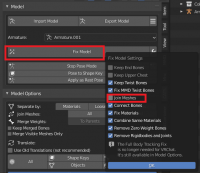
Fix Avatar Wrench Options - UNCHECK "Join Meshes". This was useful in Avatar 2.0, but is no longer. If you skip this step, you will not be able to toggle clothes because it will join the clothes meshes to your body.
- Click Fix Model. DON'T PANIC IF YOUR TEXTURES DONT SHOW UP.
- IF YOUR TEXTURES DO NOT SHOW UP: Click File > External Data > Find Missing Files > And Select the folder where your avatar is unzipped, or the folder with the textures from your model.
- IF YOUR TEXTURES STILL DO NOT SHOW UP: Please check out My Textures STILL Dont Show Up


My Textures STILL Dont Show Up: Applying textures manually
Let's apply them manually <3
- Step 1: In the Hierarchy, click the upside down "Green Triangle" of the material/texture you want to fix.
- Step 2: Make sure you are in OBJECT MODE (Top left of the screen)
- Step 3: Click the red circle icon in the tab list
- Step 4: Select the material that isn't showing up right
- Step 5: Click the yellow circle next to [Base Color], and then select "Image Texture"
- Step 6: Select the correct texture, if it is embedded into your FBX.
- Step 6.5: If the correct texture is not there, add it, by hitting the file folder icon.
MY BONES ARE WEIRD!

- Step 1: In the CATS tab of blender, hit the COG next to "Fix Model"
- Step 2: Uncheck Join Meshes (This will turn everything into 1 mesh if you dont)
- Step 3: Click Fix Model
EVERYTHINGS IN JAPANESE!

- Step 1: In the CATS tab of blender, open "Model Options"
- Step 2: Hit the BIG "All" tab on the lower left, NOT the upper one.
- Step 3: Now it's in English!
The DAMN ASS edit mode wont let me edit things half the time!

- Step 1: Click Edit
- Step 2: UNCHECK Lock Object Mode
I cant FREAKING get the textures to save with the model!

- Step 1: Export using Cats (Click "Export anyway" if it asks)
- Step 2: In the upper right hand corner, select COPY. This option does not save, you have to do it every time you save.

